
Import projects from another tool
One-click import from common trackers, with field mapping handled for you.
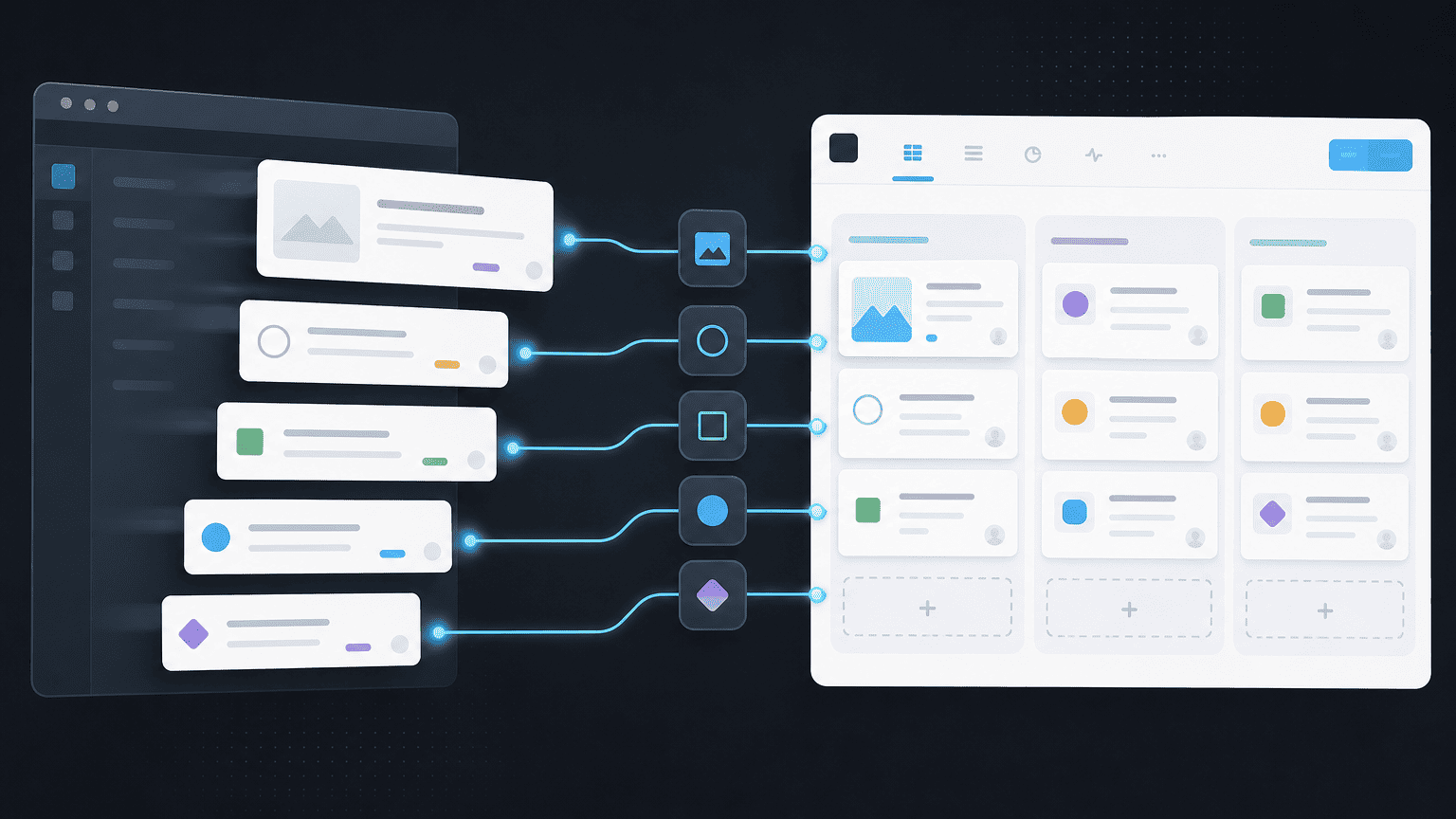
Moving from another project tracker doesn't mean starting from a blank page. PYNGYN imports your existing projects, tasks, and assignees directly.
1. Start an import
From Workspace Settings → Import, choose the tool you're importing from. PYNGYN reads projects, tasks, statuses, due dates, and assignees where the source tool provides them.
2. Review the field mapping
PYNGYN maps common fields (status, priority, due date, assignee) automatically. You'll see a preview before anything is imported, so you can adjust mappings that don't line up with how your team names things.
3. Confirm and import
Once the mapping looks right, confirm the import. Large imports run in the background, you'll get a notification when it's done.
If something looks off
See "Fixing common import issues" for the most frequent mapping problems and how to resolve them.