
May 4Admin & security6 min read
Roles and permissions explained
Control who can view, edit, and manage across your workspace.
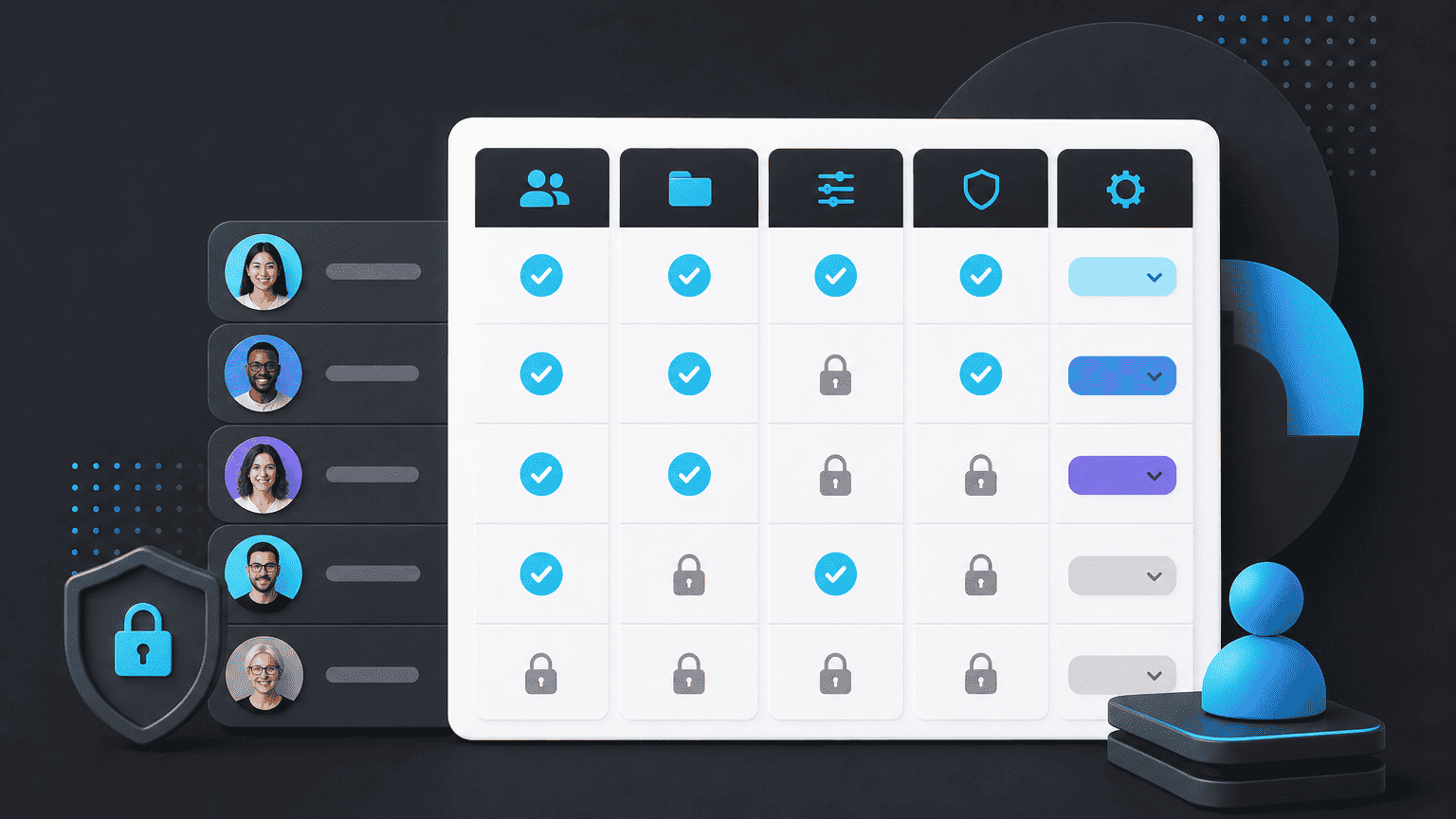
PYNGYN uses role-based access control so each person sees and can do exactly what their role requires, nothing more.
Internal roles
- Director: full visibility and control across every project, financials, and workspace settings
- Manager: runs assigned projects, manages their team's work, sees team-level reporting
- Individual contributor: sees and updates only the tasks assigned to them
Client role
Clients are a separate access tier scoped entirely to their own Client Space. A client can never see another client's data, or any of your firm's internal Workspace, regardless of their role.
Changing a role
Update anyone's role from Workspace Settings → Members at any time. Changes apply immediately, no re-login required.
Auditing access
Key actions, logins, permission changes, and document access, are logged. See "How PYNGYN handles your data" for more on audit logging and data isolation.