
Fixing common import issues
What to check when an import doesn't map the way you expected.
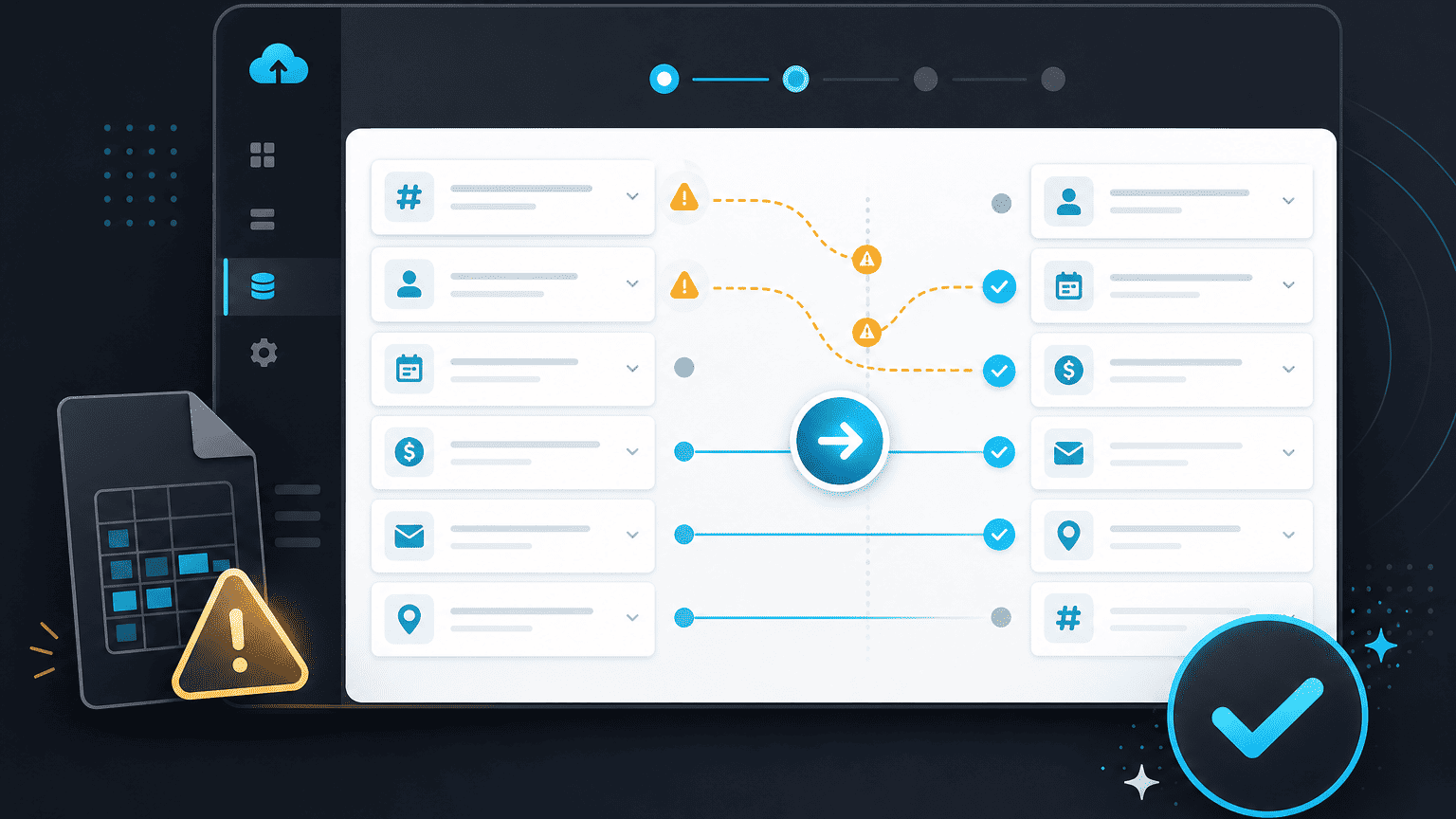
Most import problems come down to a small number of causes. Work through these before reaching out to support, it'll usually save you a round trip.
Tasks imported with the wrong owner
This usually means the email address in the source tool didn't exactly match a teammate's PYNGYN email. Check Workspace Settings → Members and confirm the addresses match, then re-run the import for the affected project.
Statuses look wrong
Custom status names in the source tool don't always map cleanly to PYNGYN's default statuses. Review the field mapping screen during import and manually map any status that doesn't look right before confirming.
Some tasks are missing entirely
Archived, deleted, or completed items in the source tool are sometimes excluded by default. Check your source tool's export settings if you expected archived items to come across too.
Still stuck?
Contact support with the name of the tool you're importing from and roughly how many items you expected, we can look at what happened on our end.